You open Gemini Notebook to turn your research into a podcast, study guide, or presentation only to discover that the old free limits no longer work as expected. Instead of counting a fixed number of chats or Audio Overviews, Google now measures how much AI computing your activity consumes.
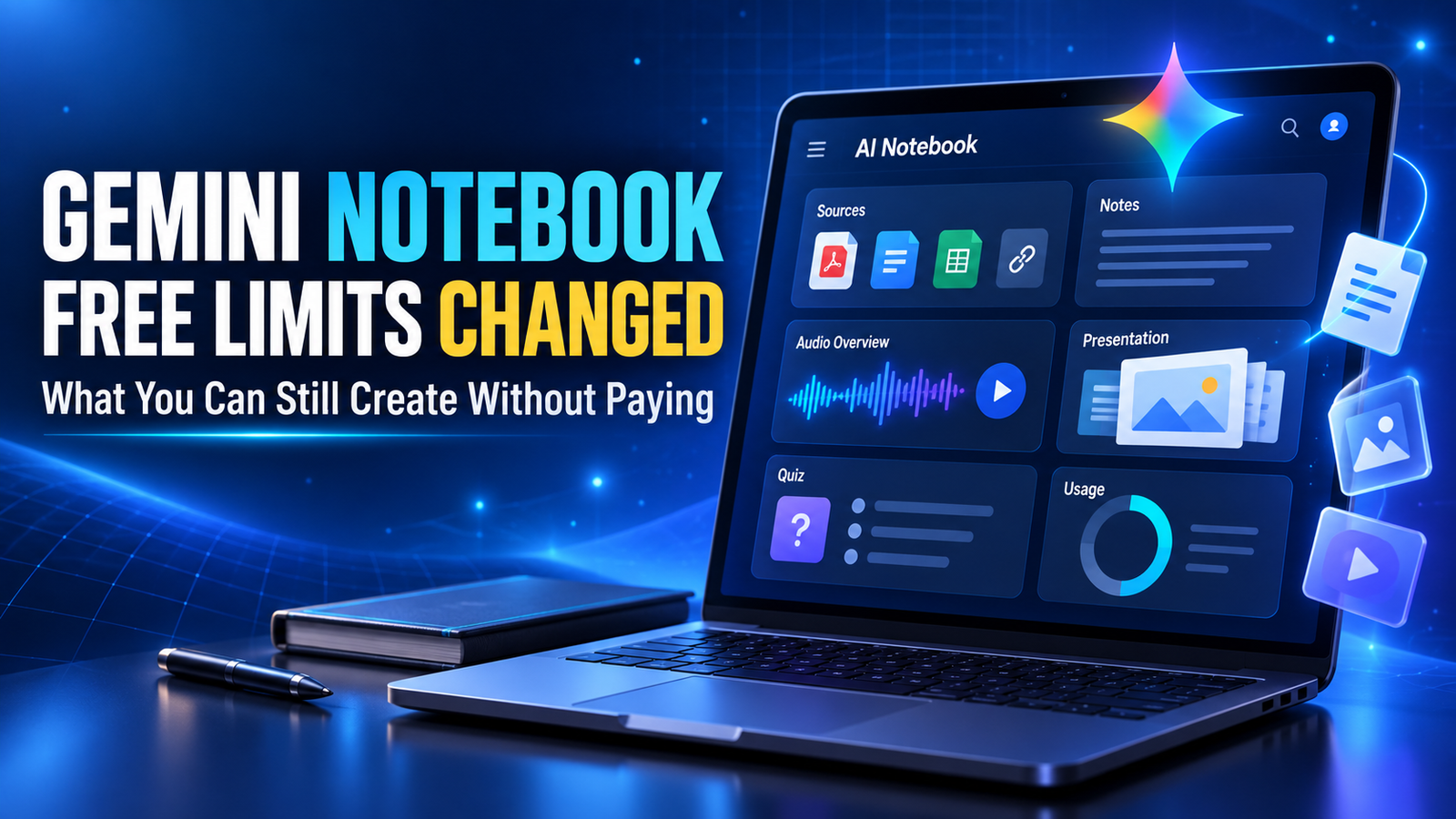
Quick answer: Gemini Notebook is still useful without a paid subscription. Free users can continue uploading sources, asking source-grounded questions, and creating Audio Overviews, Video Overviews, reports, quizzes, flashcards, mind maps, infographics, data tables, and slide decks. However, usage is now controlled through a compute-based allowance that refreshes periodically and also has a weekly ceiling.
Google introduced the new usage system on September 2, 2026. This guide explains what changed, what you can still create for free, and how students, marketers, creators, and small businesses can make the free allowance last longer.
What Is Gemini Notebook?
Gemini Notebook is Google’s AI-powered research and learning workspace, previously known as NotebookLM. It allows you to create a project-specific notebook, upload relevant materials, and use Gemini to understand those sources.
A source can include material such as:
- PDF documents
- Google Docs
- Google Slides
- Websites
- YouTube videos
- Copied text
- Other supported files
Unlike a general ChatGPT or Gemini conversation, Gemini Notebook focuses primarily on the sources you select. When you ask a question, its response can include citations pointing back to relevant sections of those sources.
This makes it especially valuable when you need to study, research, compare documents, or repurpose existing information without mixing it with unrelated internet knowledge.
Each notebook is independent. Gemini Notebook cannot automatically search across all your separate notebooks in a single conversation, so it is important to group related sources inside the same notebook.
What Changed in the Gemini Notebook Free Limits?
The biggest change is that Google has moved away from a simple fixed-count system for many AI interactions.
Starting September 2, 2026, Gemini Notebook uses compute-based limits. Instead of every prompt costing the same amount, your usage depends on factors such as:
- The complexity of your prompt
- The length of your conversation
- The AI model involved
- The Studio feature you generate
- The size and complexity of the requested output
For example, asking Gemini Notebook to identify five key points from one short document will probably consume less of your allowance than generating a long video, detailed slide deck, or complex report from dozens of sources.
The free tier is now officially described as having “standard limits.” Google does not promise one universal number of generations for every free user because different tasks require different amounts of computing.
Paid plans receive higher allowances:
| Plan | Relative usage limit |
|---|---|
| Free, without a plan | Standard limits |
| Google AI Plus | 2× the standard limit |
| Google AI Pro | 4× the standard limit |
| Google AI Ultra | 5× or 20× the AI Pro limit, depending on the subscription |
Google also states that these allowances can change due to availability, testing, or experimentation. Therefore, treat any exact free-limit number mentioned in an older article or YouTube tutorial with caution.
How Do the New Limits Reset?
If you reach your available AI limit, you do not necessarily need to wait until the next day.
Google says the quota refreshes every five hours until you reach your weekly limit. This creates two practical restrictions:
- A shorter rolling usage allowance
- A broader weekly allowance
You might temporarily hit the five-hour limit after several expensive generations. Once it refreshes, you can continue provided you have not exhausted the weekly quota.
If the weekly limit has been reached, a short refresh may not restore enough access for continued heavy use.
Gemini Notebook displays warnings in the interface when you are approaching the limit. You can also open Settings > Usage to see your current AI usage and weekly allowance. The Studio panel shows an estimated usage-cost indicator before generation, helping you judge whether an artifact will consume a small or large portion of the allowance.
What Can You Still Create for Free?
The free tier is not limited to basic chat. You still receive access to a surprisingly wide range of creation features, although every generation may contribute differently to your compute allowance.
1. Source-Grounded Answers
You can upload research materials and ask questions based on them.
Useful prompts include:
- “Summarise the three most important arguments across these sources.”
- “Which claims appear in more than one document?”
- “Explain this topic in simple language for a Class 10 student.”
- “Create a comparison table using only the uploaded sources.”
- “Find contradictions between these reports and cite the relevant passages.”
For research-heavy work, this remains one of Gemini Notebook’s most valuable free capabilities.
2. Audio Overviews
Audio Overviews turn your source material into an AI-generated spoken discussion or explanation.
Google currently provides several formats:
- Deep Dive: Two hosts explore and connect the main ideas.
- The Brief: One speaker delivers a short summary.
- The Critique: Two hosts evaluate the material constructively.
- The Debate: Two hosts examine different sides of a topic.
You can select a language, adjust the length in supported situations, and provide instructions describing the desired focus or expertise level. Google says Audio Overviews support more than 80 languages, making the feature useful for multilingual Indian audiences.
Audio Overviews are useful, but they are still AI-generated. Mispronunciations, strange speaker changes, audio glitches, or inaccurate statements can occur. Always listen to the complete file before sharing it publicly.
3. Video Overviews
You can create AI-generated video explanations based on your notebook’s sources. These can help visual learners understand a topic without reading every document.
Video generation is likely to be more compute-intensive than a short chat response, so free users should reserve it for important outputs rather than using it repeatedly for minor revisions.
4. Slide Decks
Gemini Notebook can turn your sources into a presentation. You can choose between:
- A detailed deck intended to be read independently
- Cleaner presenter slides containing key talking points
You can also specify the audience, visual direction, preferred length, language, and content focus.
Generated decks can be presented inside Gemini Notebook or downloaded in PDF or PowerPoint format. Google warns that slide decks may contain visual or factual inaccuracies, so review every slide especially figures, dates, labels, and citations before using it for college or client work.
5. Reports and Briefing Documents
The Studio panel can produce structured reports based on your sources. Available formats can include:
- Frequently asked questions
- Study guides
- Briefing documents
- Custom reports
- AI-suggested report formats
Reports can be exported to Google Docs. If a report contains data tables, those tables may also be exported to Google Sheets.
This is particularly helpful for Indian small-business owners who need to convert product research, customer feedback, or policy documents into a practical internal summary.
6. Flashcards and Quizzes
Students can transform class notes, textbook chapters, and revision PDFs into practice materials.
Instead of requesting a large quiz immediately, try a focused prompt:
Create 15 multiple-choice questions from Chapters 2 and 3. Use a mix of factual and application-based questions. Provide the answer and a one-sentence explanation after each question.
This focused approach usually gives you a more useful result and avoids wasting allowance on questions outside your syllabus.
7. Mind Maps
Mind maps are helpful when the material contains several connected concepts. A UPSC aspirant, for example, could upload notes about Indian monetary policy and create a map connecting inflation, repo rates, liquidity, borrowing, and economic growth.
A mind map should be treated as a navigation aid rather than a complete replacement for the original material.
8. Infographics
Gemini Notebook can transform information from your sources into a visual summary.
This can help marketers and content creators prepare:
- Campaign summaries
- Educational social posts
- Process explanations
- Product-comparison visuals
- Internal training material
Check every number before publishing an AI-generated infographic. A visually convincing design can still contain an incorrect figure or misleading label.
9. Data Tables
You can generate customised tables with specific rows and columns. The result can be exported to Google Sheets, with citations placed in a separate tab when supported.
For example, a small business comparing payment gateways could upload official pricing pages and request:
Create a table comparing setup charges, transaction fees, settlement times, supported payment methods, and important restrictions. Leave a cell blank when a detail is not stated in the source.
The final instruction is important because it discourages the AI from inventing missing details.
A Practical Free-Tier Workflow I Use
When I use Gemini Notebook for content research, I avoid uploading every interesting link into one large notebook. A focused notebook normally produces clearer answers and wastes less of the allowance.
Here is a practical workflow for researching a blog article.
Step 1: Define One Clear Outcome
Create a notebook for one article, campaign, subject, or client project.
Do not mix unrelated material such as AI news, personal finance, and YouTube strategy in the same notebook.
Step 2: Upload a Small Set of Strong Sources
Start with three to eight reliable sources rather than uploading dozens immediately.
For an AI product article, I would prioritise:
- Official help pages
- Official product announcements
- Official pricing or plan pages
- My own testing notes
- A carefully selected independent source for context
Primary sources are especially important when discussing prices, quotas, supported features, or policy changes.
Step 3: Ask for a Source Audit
Before requesting an article or presentation, ask:
List each source, explain what unique information it contributes, and identify any conflicting or outdated details. Do not create facts that are missing from the sources.
This quickly reveals whether the notebook contains enough reliable information.
Step 4: Generate a Brief Before a Large Artifact
Ask for an outline or short briefing document before creating a slide deck, video, or long report.
If the outline is weak, correct the scope first. Repeatedly generating full outputs can consume your allowance unnecessarily.
Step 5: Create One Final Artifact
Once the structure is correct, generate the required output with one detailed prompt.
For example:
Create a presenter-style slide deck for Indian college students. Explain the topic in beginner-friendly English, use practical Indian examples, include a final revision checklist, and rely only on the selected sources.
Step 6: Export and Edit Manually
Do not keep regenerating an entire artifact to fix one sentence. Export the result to Docs, Sheets, PowerPoint, or PDF and make small corrections manually where possible.
This is one of the easiest ways to stretch the free allowance.
How Different Indian Users Can Use the Free Tier
For Students
A student can upload lecture notes, syllabus documents, and selected textbook chapters. Gemini Notebook can then create:
- Chapter summaries
- Revision plans
- Flashcards
- Practice quizzes
- Audio lessons
- Concept maps
Do not upload an entire semester unless necessary. A separate notebook for each subject or major unit makes retrieval more precise.
For Content Creators
Creators can upload video transcripts, official sources, research notes, and audience questions. The tool can help produce:
- Research briefs
- Video outlines
- FAQ sections
- Talking points
- Content repurposing plans
- Audio or visual explainers
It should not be used to publish unverified scripts automatically. Review the original citations before recording.
For Marketers
A marketer can combine brand guidelines, campaign results, product documentation, and customer research. Gemini Notebook can then create:
- Campaign briefs
- Customer-objection summaries
- Content calendars
- Sales-training documents
- Product comparison tables
Avoid uploading confidential client material unless your account, organisation, and data policies permit it.
For Small-Business Owners
A business owner can use separate notebooks for supplier documents, operating procedures, product information, or staff training.
For example, a Shopify seller could upload shipping policies, return rules, product specifications, and common customer questions. Gemini Notebook could turn them into a staff FAQ or customer-support reference.
However, AI output should not replace professional legal, medical, tax, or financial advice. Google itself warns against relying on Gemini Notebook for professional advice in these high-stakes areas.
How to Make the Free Limit Last Longer
The new system rewards deliberate usage.
- Use smaller, topic-focused notebooks.
- Select only the sources required for the current question.
- Ask one structured question instead of several vague follow-ups.
- Request an outline before generating an expensive artifact.
- Use shorter output lengths during experimentation.
- Save strong prompts so you do not repeat failed attempts.
- Batch slide corrections before regenerating a deck.
- Edit small errors manually after exporting.
- Use “The Brief” instead of a long Audio Overview when you only need key points.
- Check the Studio usage indicator before starting a large generation.
If you run out of allowance, the web version may offer Generate later. This places the artifact into delayed generation, which can take a few hours. It is useful when the result is not urgent and you do not want to upgrade immediately.
Is the Gemini Notebook Free Tier Still Worth Using?
Yes, especially for occasional study, research, and content-planning tasks.
The change makes the free plan less predictable because there is no longer one simple number that tells every user exactly how many outputs remain. Heavy users may find the compute-based limit restrictive when generating multiple videos, audio files, or presentations.
However, free users still have access to the core Notebook experience. You can organise sources, question them with citations, and create several useful output formats without paying.
A paid plan becomes more relevant when you regularly:
- Work with large research collections
- Generate several Studio artifacts every day
- Need repeated slide or video revisions
- Share the tool across a demanding professional workflow
- Cannot wait for a quota refresh
For light or moderate use, the free tier remains a strong starting point.
Frequently Asked Questions
Is Gemini Notebook still free?
Yes. You can use Gemini Notebook without purchasing a Google AI subscription. The free version has standard compute-based limits, while paid plans provide higher allowances.
How many Audio Overviews can I create for free?
Google’s current system does not guarantee one simple daily number for every user. Usage depends on the complexity and computational cost of your activity, along with your five-hour and weekly allowances. Check Settings > Usage for the status of your account.
What happens when I reach the free limit?
Gemini Notebook displays a limit message and tells you when usage is expected to refresh. The allowance refreshes every five hours until the weekly limit is reached. On the web, you may also be able to select Generate later for a delayed Studio generation.
Are Gemini Notebook answers always accurate?
No. Source grounding and citations make verification easier, but the AI can still misunderstand a document, omit context, or produce inaccurate text, audio, visuals, and slides. Open the cited passages and verify important claims before publishing or making a decision.
Final Verdict
The Gemini Notebook free limits have changed, but the free tier has not become useless. It remains capable of producing source-grounded answers, Audio and Video Overviews, reports, study tools, data tables, infographics, mind maps, and presentation decks.
The key difference is that you must now manage computing allowance rather than count a fixed number of prompts. Focused sources, detailed prompts, shorter test outputs, and manual editing after export will help you create more without paying.
Your next step: Open Gemini Notebook, create one focused notebook with three reliable sources, and test this prompt:
Analyse these sources and create a concise briefing document containing the five most important findings, supporting citations, conflicting information, unanswered questions, and three practical next actions. Do not add facts that are not present in the sources.
Check the usage indicator before and after the generation. That small test will show you how the new free-limit system behaves on your own account before you spend the allowance on an Audio Overview, video, or complete slide deck.